Organize Maple with Projects, Shared Context, and Pinned Chats
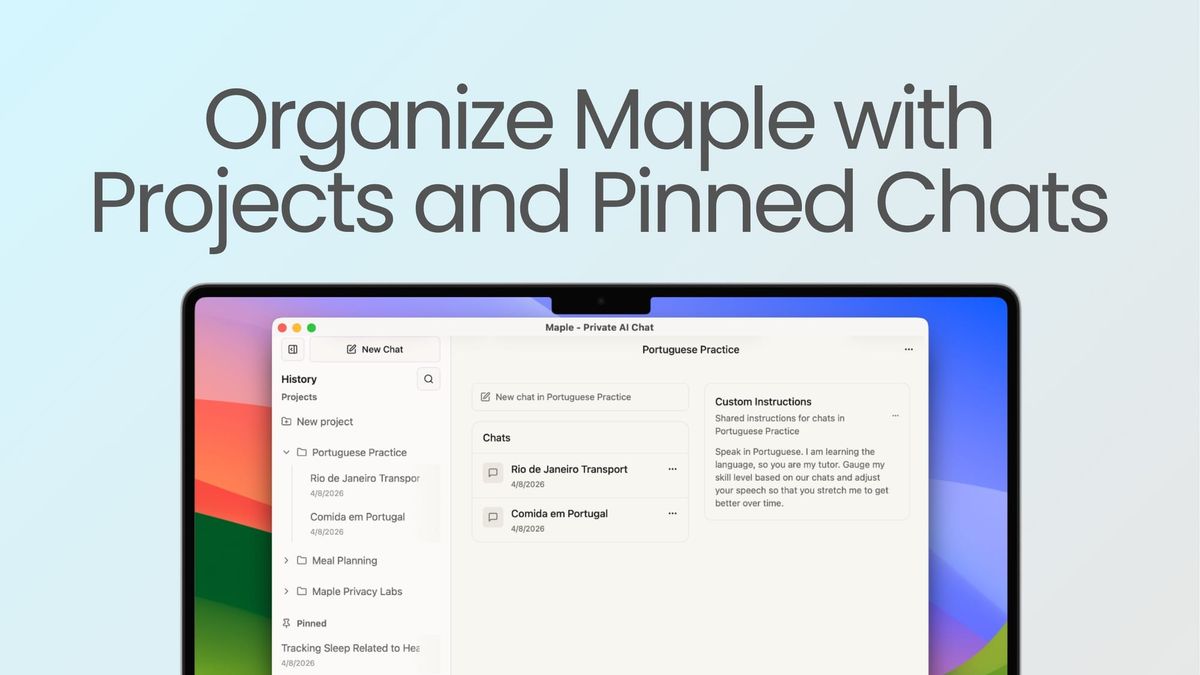
If you've used Maple for a while, your chat history probably looks like mine: a giant scrolling list of every conversation you've ever had with AI. The contract you reviewed last Tuesday is mixed in with a recipe idea and a wellness question. Your client work blends into your personal brainstorms. It works for a while and then becomes overwhelming. Today we're fixing that.
Maple Projects is here, and it's one of the most requested features from our faithful fanbase. You can now group related chats into Projects, pin the conversations you return to most, and keep your AI workspace as organized as you want it to be. All with the same end-to-end encryption that Maple has always delivered. Your projects, like your chats, are private by design. Not even we can see what you're working on.
Why Projects?
If you're a user of other AI tools, you've probably seen Projects there. They're the feature people use to corral long-running work: a dissertation, a book draft, a side business, a legal matter, a health concern. Projects turn AI from a one-shot tool into a workspace.
The problem with Projects in those tools is the same problem we've always had with mainstream AI: it becomes more useful as you give more of yourself to it, which means more of yourself ends up sitting on someone else's server. The deeper you go, the more you have to lose. Maple Projects gives you that same workspace, but the workspace is yours. Encrypted on your device. Processed inside TEEs. Never used to train anyone else's model.
What's New
The Projects release is a group of features that aim to keep the most relevant information at the top so you spend less time searching and more time collaborating.
Projects
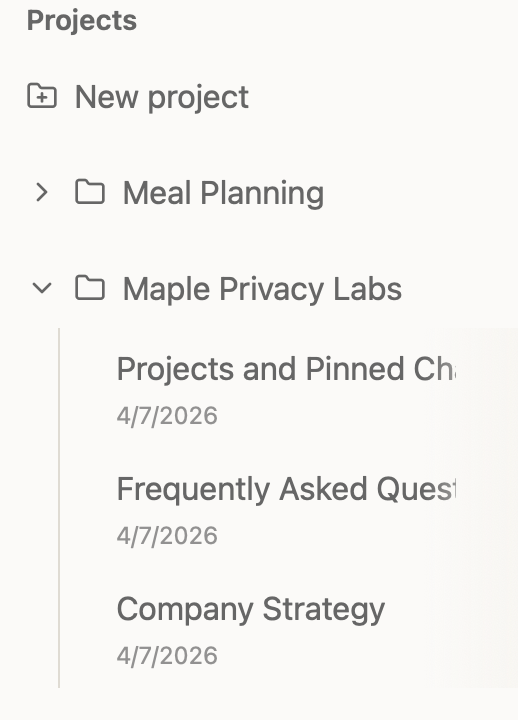
Group related chats into Projects. Create as many as you want, name them however makes sense to you, and each one becomes its own pocket of your workspace. Whether it's a long-running case, a course you're studying, or your weekly meal planning, Projects keep the right chats together and the rest of your history out of the way.
New chats can be started within a project or you can take existing chats and move them around. Tap the ... button on any chat to move it into a project, between projects, or back out to Recents. Organize to your heart's content. It's spring in the northern hemisphere, so it's a great time to freshen up that chat history of yours.
Custom Instructions for Every Project
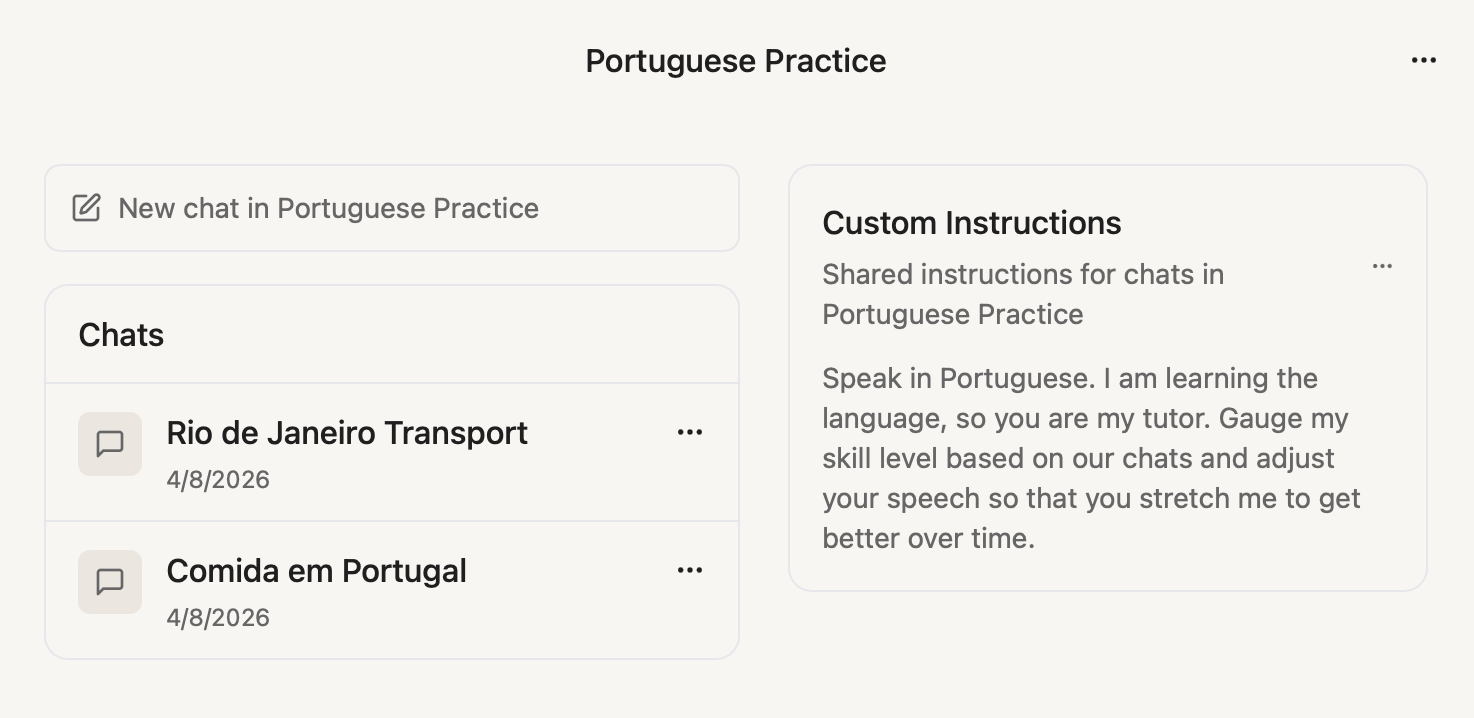
Each project has its own custom instructions field, and whatever you put there is automatically included with every chat in that project. This means you can stop repeating yourself in every chat. With Maple's encryption and privacy, you can make these project instructions as detailed as you'd like without worrying that the information is used to train future AI models.
A few ways to use it:
- Work: your role, your company, the tone your team uses, the goals you're focused on this quarter
- Clients: client profile, the client's preferences, the constraints you're working within
- Family: your kids' names and ages, dietary needs, the weekly schedule.
- Writing: the genre, the voice, your style guide
- Study: the course, your level, course syllabus
- Characters, Job Roles: build out a personality in the custom instructions, like mentor, therapist, or a historical figure of the past. Any chat within that project speaks to an AI representation of that personality.
- Learning a Language: set the custom instructions to the language you want and every chat will be a new practice session on your journey to fluency
Pinned Chats
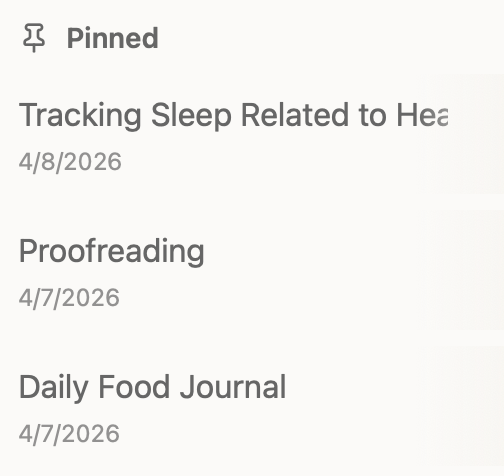
There are some AI conversations you come back to constantly. Pin them and they'll always be one click away in their own section at the top of your sidebar. No more scrolling to find that one chat that you refer to often. Also, to make things even easier, chats are now sorted by the most recent activity.
Some chats that I keep pinned (that I'm okay sharing publicly 😉)
- Daily food diary
- Tracking symptoms of a specific health item, including how it affects my sleep
- Company operations questions
- Proofreading: Everything I paste gets a quick spell and grammar check
How to Get Started
- Open Maple on web, desktop, iOS, or Android.
- In the sidebar, create your first project and give it a name.
- Add custom instructions to anchor every chat in that project.
- Move existing chats into it with the ... button, or start a new chat from inside the project.
- Pin the conversations you return to most. That's it. No setup, no migrations, no extra accounts. Your existing chats remain exactly where they are until you decide to move them.
Privacy is the Foundation
Projects are built on top of Maple's privacy-first platform. Project names, custom instructions, the chats inside them, and everything you write are encrypted on your device using a key unique to you. Processing happens inside Trusted Execution Environments (TEEs), where even our own engineers can't see what you're working on. Our code is open source and our attestation is live so you can verify everything yourself.
Available Today, Free for Everyone
Maple Projects is rolling out now to all Maple users, free accounts included. Find it on web, desktop, iOS, and Android. Open the app and your new sidebar is waiting for you.
If you're getting real value out of Projects and want to push them further, Maple Pro adds Live Data with private, anonymous web search that pulls the latest information from the internet directly into your chats and projects. Imagine your Client project not just remembering the context of an ongoing matter, but pulling in this morning's regulatory update. Or your Research project surfacing a paper that came out yesterday. Pro brings the freshest information into the workspace you've built.
This is just the first version of Projects. We have ideas for where they could grow, and we'd love to hear yours. Hop into our Discord or message us on X @TryMapleAI and tell us how you're using them.